
 Русский
 English
 Українська
 Deutsch
 Español
 Português
 Türkçe
 中文
中文

Entendiendo los Puertos y su Rol en la Comunicación de Red
En el vasto panorama de la comunicación de red, los puertos sirven como puntos finales críticos para procesos o aplicaciones específicos dentro de un host. Imagine una dirección IP como la dirección de la calle de un edificio; un número de puerto es similar a un número de apartamento específico dentro de ese edificio. Cuando los datos llegan a una dirección IP, el número de puerto los dirige a la aplicación o servicio correcto que se ejecuta en esa máquina. Sin puertos, todo el tráfico entrante llegaría a un único punto indiferenciado, lo que imposibilitaría que un sistema operativo supiera qué aplicación debe manejar cada flujo de datos.
Los puertos son números de 16 bits, que van del 0 al 65535. Se categorizan en tres rangos principales:
- Puertos bien conocidos (0-1023): Estos puertos están reservados para servicios comunes y ampliamente utilizados. Por ejemplo, el tráfico HTTP suele utilizar el puerto 80, y el HTTPS utiliza el puerto 443. Estas asignaciones son gestionadas por la Autoridad de Números Asignados de Internet (IANA).
- Puertos registrados (1024-49151): Estos puertos pueden ser registrados por aplicaciones o servicios específicos para su uso. Aunque no se aplican tan estrictamente como los puertos bien conocidos, muchas aplicaciones optan por estos para evitar conflictos con servicios comunes. Por ejemplo, Microsoft SQL Server suele utilizar el puerto 1433, y MySQL utiliza el 3306.
- Puertos dinámicos/privados (49152-65535): Estos puertos están disponibles para uso privado o temporal. Las aplicaciones cliente suelen utilizar puertos de este rango al iniciar conexiones con un servidor. Por ejemplo, cuando su navegador web se conecta a un sitio web, utilizará un puerto dinámico en su máquina para enviar y recibir datos.
Para servicios como GProxy, comprender la asignación y disponibilidad de los puertos es primordial. Ya sea que esté configurando un servidor proxy personalizado, configurando una aplicación específica para enrutar el tráfico a través de un proxy SOCKS5 o HTTP, o asegurándose de que sus propios servicios sean accesibles, identificar y gestionar correctamente los puertos es una habilidad fundamental. Un puerto no disponible o bloqueado significa que su servicio, o su conexión a un servidor de GProxy, simplemente no funcionará como se espera, lo que provocará problemas de conectividad y tiempos de inactividad operativos.
Números de Puerto Comunes y su Importancia
Aunque existen 65536 números de puerto posibles, un puñado de ellos son universalmente reconocidos y cruciales para las operaciones cotidianas de Internet. La familiaridad con estas asignaciones estándar ayuda a diagnosticar problemas de red y a configurar los servicios correctamente.
- Puerto 20 (Datos FTP) y 21 (Control FTP): Protocolo de Transferencia de Archivos. Se utiliza para transferir archivos entre ordenadores. El FTP es un protocolo antiguo, a menudo sustituido por SFTP o SCP por razones de seguridad.
- Puerto 22 (SSH): Secure Shell. Proporciona un canal seguro sobre una red no segura, comúnmente utilizado para el acceso remoto por línea de comandos, túneles y transferencias seguras de archivos (SFTP).
- Puerto 23 (Telnet): Protocolo de inicio de sesión remoto. En gran parte en desuso debido a su falta de cifrado, lo que lo hace vulnerable a la interceptación.
- Puerto 25 (SMTP): Protocolo Simple de Transferencia de Correo. Se utiliza para enviar mensajes de correo electrónico entre servidores.
- Puerto 53 (DNS): Sistema de Nombres de Dominio. Traduce nombres de dominio legibles por humanos (como gproxy.net) en direcciones IP legibles por máquinas. Esencial para prácticamente toda la actividad en Internet.
- Puerto 80 (HTTP): Protocolo de Transferencia de Hipertexto. La base de la comunicación de datos para la World Wide Web. Tráfico web no cifrado.
- Puerto 110 (POP3): Protocolo de Oficina de Correo versión 3. Utilizado por los clientes de correo electrónico para recuperar correos de un servidor de correo.
- Puerto 143 (IMAP): Protocolo de Acceso a Mensajes de Internet. Otro protocolo para recuperar correos electrónicos, que ofrece funciones más avanzadas como mantener los mensajes en el servidor.
- Puerto 443 (HTTPS): Protocolo Seguro de Transferencia de Hipertexto. La versión segura de HTTP, que cifra la comunicación mediante SSL/TLS. Esencial para la navegación web segura y las transacciones en línea.
- Puerto 3389 (RDP): Protocolo de Escritorio Remoto. Desarrollado por Microsoft, permite a un usuario controlar gráficamente un ordenador remoto.
- Puerto 1080 (SOCKS): Protocolo proxy SOCKS. A menudo utilizado por los proxies SOCKS5 avanzados de GProxy para enrutar paquetes de red entre un cliente y un servidor a través de un servidor proxy. Maneja varios tipos de tráfico, incluyendo TCP y UDP, lo que lo hace muy versátil para diversas aplicaciones.
- Puertos 8080, 8000, 3128 (Proxies HTTP/S): Aunque los proxies HTTP pueden teóricamente funcionar en cualquier puerto, el 8080, 8000 y 3128 son alternativas muy comunes al puerto 80 para los servicios de proxy HTTP, especialmente cuando se ejecuta un servidor web en el puerto 80. Los proxies HTTP de GProxy podrían utilizar estos u otros puertos designados para garantizar una conectividad dedicada y de alto rendimiento.
Entender estos puertos comunes ayuda a identificar rápidamente qué servicios se están ejecutando en una máquina o qué servicios podría estar bloqueando un firewall. Por ejemplo, si intenta acceder a un servidor web y el puerto 80 o 443 no está abierto, sabrá inmediatamente por dónde empezar a investigar el problema.

Cómo Encontrar Puertos Abiertos en su Sistema (Perspectiva Local)
Identificar qué puertos están escuchando activamente en su máquina local es el primer paso para gestionar los servicios de red. Este proceso varía ligeramente según su sistema operativo.
En Windows
Windows proporciona varias herramientas integradas para inspeccionar las conexiones de red y los puertos de escucha.
Usando netstat
La utilidad de línea de comandos netstat es una potente herramienta para mostrar las conexiones de red, las tablas de enrutamiento, las estadísticas de las interfaces, las conexiones de enmascaramiento y mucho más. Para ver los puertos de escucha:
- Abra el Símbolo del sistema o PowerShell como administrador.
- Ejecute el comando:
netstat -anoEste comando se desglosa de la siguiente manera:
-a: Muestra todas las conexiones y puertos de escucha.-n: Muestra las direcciones y los números de puerto en forma numérica. Esto evita las búsquedas DNS, haciendo que la salida sea más rápida.-o: Muestra el ID del proceso propietario (PID) asociado a cada conexión.
La salida mostrará columnas como Proto, Local Address, Foreign Address, State y PID. Busque las entradas donde el State sea "LISTENING" en la columna Local Address. El número después de los dos puntos (ej., 0.0.0.0:80) es el número de puerto. A continuación, puede utilizar el PID para identificar el proceso que utiliza ese puerto:
tasklist /fi "PID eq [PID_NUMBER]"Por ejemplo, si el PID 4 está escuchando en el puerto 80, tasklist /fi "PID eq 4" mostraría que el proceso System lo está utilizando, lo que a menudo significa que HTTP.sys (IIS, SQL Server Reporting Services, etc.) está activo.
Usando el Monitor de Recursos
Para un enfoque más gráfico, el Monitor de Recursos de Windows proporciona una visión general de la actividad de la red.
- Presione
Win + R, escribaresmony presione Enter. - Navegue hasta la pestaña "Red".
- Expanda "Puertos de escucha". Aquí verá una lista de procesos, sus puertos asociados y el estado del firewall. Esto es particularmente útil para identificar rápidamente qué aplicación está usando qué puerto sin profundizar en la salida de la línea de comandos.
En Linux y macOS
Los sistemas tipo Unix ofrecen herramientas de línea de comandos similares y, a menudo, más robustas.
Usando netstat
El comando netstat también está disponible en Linux y macOS, con una sintaxis ligeramente diferente para el uso común.
- Abra una terminal.
- Ejecute el comando:
netstat -tulnpExplicación de los parámetros:
-t: Muestra las conexiones TCP.-u: Muestra las conexiones UDP.-l: Muestra solo los sockets de escucha.-n: Muestra direcciones y números de puerto numéricos.-p: Muestra el PID y el nombre del programa para el socket. (Requiere privilegios de root, por lo que puede necesitarsudo).
La salida listará las conexiones de Internet activas y los puertos de escucha, junto con el nombre del programa asociado y el PID. Por ejemplo, podría ver tcp 0 0 0.0.0.0:22 0.0.0.0:* LISTEN 1234/sshd, indicando que SSH está escuchando en el puerto 22.
Usando ss (Socket Statistics)
La utilidad ss es un reemplazo más moderno y generalmente más rápido para netstat en Linux, especialmente para sistemas con muchas conexiones.
- Abra una terminal.
- Ejecute el comando:
ss -tulnpLos parámetros son similares a netstat: -t (TCP), -u (UDP), -l (escucha), -n (numérico), -p (proceso). Obtendrá una salida estructurada de forma similar a netstat, mostrando direcciones locales, puertos y procesos asociados.
Usando lsof (List Open Files)
lsof es un comando extremadamente versátil que enumera los archivos abiertos y, en los sistemas tipo Unix, los sockets de red se tratan como archivos. Esto lo hace excelente para encontrar procesos por puerto.
- Abra una terminal.
- Para encontrar todos los puertos TCP de escucha:
sudo lsof -i -P -n | grep LISTENExplicación de los parámetros:
-i: Enumera los archivos de red.-P: Evita la conversión de nombres de puerto (ej., muestra 80 en lugar de http).-n: Evita la conversión de nombres de host.grep LISTEN: Filtra la salida para mostrar solo los sockets de escucha.
Para encontrar un puerto específico, por ejemplo, el puerto 8080:
sudo lsof -i :8080Esto le mostrará el nombre del proceso, el PID, el usuario y el descriptor de archivo asociado al puerto 8080, si está en uso.
Una vez que haya identificado un puerto y el proceso que lo utiliza, tendrá la información necesaria para configurar sus aplicaciones, solucionar conflictos o asegurarse de que un servicio (como una configuración de proxy local para GProxy) se esté ejecutando como se espera.
Cómo Comprobar la Disponibilidad de un Puerto desde una Perspectiva Externa
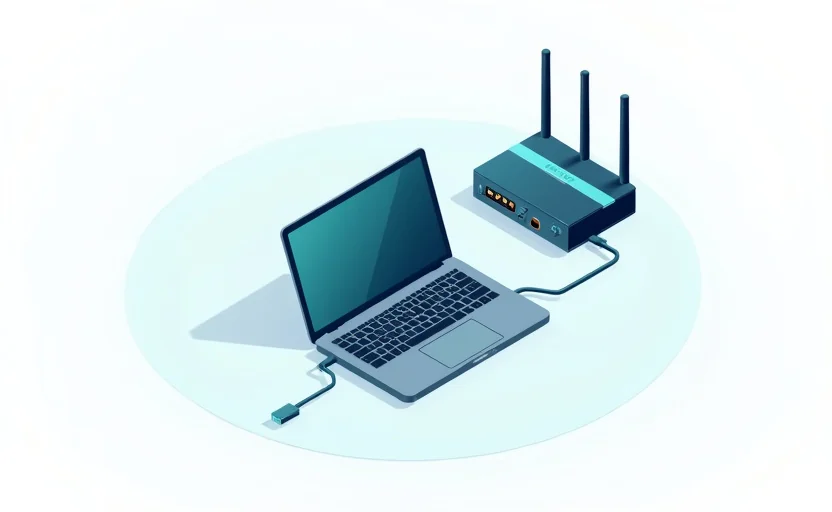
Saber qué puertos están escuchando en su máquina local es solo la mitad de la batalla. Para que un servicio esté realmente "disponible" para el mundo exterior –ya sea un servidor web, un demonio SSH o una aplicación personalizada que necesite recibir conexiones entrantes– el puerto también debe estar abierto y ser accesible a través de los firewalls y routers de su red. Esto es crucial para escenarios en los que necesita exponer un servicio, o cuando intenta conectarse a un servidor remoto de GProxy y necesita confirmar su accesibilidad.
Uso de Escáneres de Puertos en Línea
La forma más fácil de comprobar la disponibilidad de un puerto externo es mediante el uso de herramientas de escaneo de puertos en línea. Estos sitios web realizan un escaneo desde sus servidores hacia su dirección IP pública, informando qué puertos están abiertos o cerrados.
- Encuentre su dirección IP pública: Vaya a un sitio como
whatismyip.como simplemente busque "cuál es mi IP" en Google. - Utilice un escáner de puertos en línea:
- YouGetSignal Port Forwarding Tester: Visite
www.yougetsignal.com/tools/open-ports/. Introduzca el número de puerto que desea comprobar (ej., 80, 443, 1080) y haga clic en "Check". Le dirá si el puerto está abierto o cerrado desde su perspectiva. - IP.Tools: Muchos sitios web de herramientas de red ofrecen una funcionalidad similar. Busque "online port checker" para encontrar alternativas.
- YouGetSignal Port Forwarding Tester: Visite
Nota importante: Si un escáner en línea informa que un puerto está "cerrado" o "filtrado", no significa necesariamente que no haya ningún servicio escuchando en su máquina. Lo más frecuente es que indique que un firewall (ya sea en su máquina, en su router o en la red de su ISP) está bloqueando la conexión entrante.
Uso de telnet o nc (netcat) desde otra máquina
Para una comprobación más directa y a menudo más fiable, puede utilizar utilidades de línea de comandos desde otro ordenador (ej., un servidor, otro dispositivo en una red diferente o incluso una instancia en la nube).
Usando telnet
telnet intenta establecer una conexión con un host y un puerto específicos. Si la conexión tiene éxito, el puerto está abierto y escuchando.
- Abra una terminal o símbolo del sistema en una máquina remota.
- Ejecute el comando:
telnet [SU_DIRECCION_IP_PUBLICA] [NUMERO_DE_PUERTO]Por ejemplo, para comprobar si el puerto 80 está abierto en su IP pública:
telnet 203.0.113.45 80- Si la conexión tiene éxito, verá un mensaje como "Connected to [IP address]" o una pantalla en blanco, lo que indica que el puerto está abierto. A continuación, puede pulsar
Ctrl + ]y escribirquitpara salir. - Si la conexión falla (ej., "Connection refused", "Connection timed out"), el puerto está cerrado, bloqueado por un firewall o no hay ningún servicio escuchando.
Nota: Es posible que el cliente telnet deba habilitarse en Windows a través de "Activar o desactivar las características de Windows". En Linux/macOS, suele estar preinstalado o se instala fácilmente mediante gestores de paquetes (ej., sudo apt install telnet).
Usando nc (netcat)
netcat, a menudo llamado la "navaja suiza de TCP/IP", es una herramienta más versátil que telnet para la depuración de redes.
- Abra una terminal o símbolo del sistema en una máquina remota.
- Ejecute el comando:
nc -vz [SU_DIRECCION_IP_PUBLICA] [NUMERO_DE_PUERTO]Por ejemplo, para comprobar el puerto 443:
nc -vz 203.0.113.45 443Explicación de los parámetros:
-v: Salida detallada (verbose).-z: Modo Zero-I/O (solo escanea demonios de escucha, sin enviar datos).
La salida que indica el éxito se verá típicamente como Connection to 203.0.113.45 443 port [tcp/https] succeeded!. Los mensajes de error indicarán que la conexión fue rechazada o que se agotó el tiempo de espera.
Configuración del Firewall y del Router
Si las comprobaciones externas fallan, los principales culpables suelen ser casi siempre los firewalls o la configuración del router.
- Firewall de la máquina local: Asegúrese de que el firewall de su sistema operativo (Windows Defender Firewall, iptables en Linux, macOS Firewall) esté configurado para permitir conexiones entrantes en el puerto específico para la aplicación que desea exponer.
- Firewall del router / Reenvío de puertos (Port Forwarding): El router de su casa u oficina suele actuar como un firewall, bloqueando todas las conexiones entrantes no solicitadas. Para permitir el acceso externo a un servicio en un dispositivo dentro de su red local, debe configurar el "reenvío de puertos" (o "travesía NAT") en su router. Esto le indica al router que dirija el tráfico entrante en un puerto público específico a una dirección IP interna y un puerto específicos en su red local.
- Restricciones del ISP: Algunos proveedores de servicios de Internet (ISP) bloquean ciertos puertos (ej., el 25 para SMTP) para evitar el spam o el uso indebido. Póngase en contacto con su ISP si sospecha que este es el caso.
Configurar correctamente estas capas es esencial para cualquier servicio accesible públicamente, incluyendo configuraciones de proxy personalizadas o aplicaciones específicas que se comunican con los servidores de GProxy.
Resolución de Problemas Relacionados con los Puertos
Encontrar problemas relacionados con los puertos es común, especialmente al desplegar nuevos servicios o configurar redes complejas. He aquí un desglose de los problemas más frecuentes y sus soluciones.
Errores de "Puerto ya en uso"
Este es quizás el error más común relacionado con los puertos. Ocurre cuando se intenta iniciar un servicio que intenta vincularse a un puerto ya ocupado por otro proceso.
- Diagnóstico: Utilice los métodos de identificación de puertos locales (
netstat -anoen Windows,sudo lsof -i :[PUERTO]oss -tulnpen Linux/macOS) para identificar qué proceso está utilizando actualmente el puerto deseado. - Soluciones:
- Terminar el proceso en conflicto: Si el proceso no es esencial o es una aplicación maliciosa, puede terminarlo. En Windows, utilice el Administrador de tareas o
taskkill /PID [PID] /F. En Linux/macOS, utilicekill -9 [PID]. - Cambiar el puerto de su nuevo servicio: Si el proceso en conflicto es esencial (ej., otro servidor web en el puerto 80), es posible que tenga que configurar su nuevo servicio para que escuche en un puerto diferente y disponible. Por ejemplo, un proxy HTTP podría configurarse por defecto en el 8080 si el 80 está ocupado.
- Reiniciar los servicios: A veces, un servicio puede haber fallado pero haber dejado su puerto en un estado "TIME_WAIT". Reiniciar el sistema o esperar unos minutos a menudo puede limpiar estos estados transitorios.
- Terminar el proceso en conflicto: Si el proceso no es esencial o es una aplicación maliciosa, puede terminarlo. En Windows, utilice el Administrador de tareas o
Bloqueos de Firewall
Cuando falla una comprobación de puerto externa, pero una comprobación local muestra que el servicio está escuchando, el culpable es casi con toda seguridad un firewall.
- Diagnóstico:
- Firewall local: Compruebe la configuración del firewall de su SO. En Windows, vaya a "Windows Defender Firewall con seguridad avanzada" e inspeccione las "Reglas de entrada". En Linux, compruebe
ufw statusosudo iptables -L. En macOS, compruebe "Seguridad y privacidad" -> "Firewall" -> "Opciones de firewall". - Firewall del router: Inicie sesión en la interfaz de administración de su router (normalmente a través de un navegador web, ej.,
192.168.1.1) y busque los ajustes de "Port Forwarding", "NAT" o "Servidores Virtuales". Asegúrese de que existe una regla para reenviar el puerto externo a la dirección IP interna y al puerto correctos de su servicio. - Firewall del ISP: Si todo lo demás falla, contacte con su ISP. Podrían estar bloqueando ciertos puertos a nivel de su red.
- Firewall local: Compruebe la configuración del firewall de su SO. En Windows, vaya a "Windows Defender Firewall con seguridad avanzada" e inspeccione las "Reglas de entrada". En Linux, compruebe
- Soluciones:
- Añadir una excepción a su firewall local: Cree una regla de entrada para permitir el tráfico en el puerto específico para su aplicación.
- Configurar el reenvío de puertos en su router: Establezca una regla para dirigir el tráfico externo en el puerto público a la IP interna y al puerto de su máquina.
- Solicitar asistencia al ISP: Si su ISP bloquea puertos críticos para su operación (ej., ejecutar un servidor de correo), pregunte si ofrecen planes de negocios con puertos abiertos o solicitudes específicas de desbloqueo de puertos.
Configuración Incorrecta del Servicio
A veces, el problema no está en los firewalls ni en los conflictos de puertos, sino en cómo está configurado el propio servicio para escuchar.
- Diagnóstico:
- Dirección de vinculación (Binding Address): Un servicio puede estar configurado para escuchar solo en
127.0.0.1(localhost) en lugar de0.0.0.0(todas las interfaces disponibles) o una dirección IP externa específica. Si solo escucha en localhost, no será accesible desde otras máquinas, aunque el puerto esté abierto en los firewalls. Compruebe el archivo de configuración de su servicio (ej.,httpd.confpara Apache,nginx.confpara Nginx o ajustes específicos de la aplicación). - Desajuste de protocolo: Asegúrese de que su servicio está escuchando en el protocolo correcto (TCP o UDP) para el tráfico que espera.
- Dirección de vinculación (Binding Address): Un servicio puede estar configurado para escuchar solo en
- Soluciones:
- Ajustar la dirección de vinculación: Modifique la configuración del servicio para que escuche en
0.0.0.0o en la dirección IP de la interfaz de red específica que da a Internet. - Verificar el protocolo: Confirme que el servicio y el tráfico entrante utilizan el mismo protocolo.
- Ajustar la dirección de vinculación: Modifique la configuración del servicio para que escuche en
Para los usuarios que aprovechan los servicios de GProxy, muchas de estas complejidades se abstraen. Cuando adquiere un proxy dedicado de GProxy, se le proporciona una dirección IP y un número de puerto específicos que ya están configurados, disponibles y optimizados para el rendimiento. Esto reduce significativamente la necesidad de una gestión extensa de puertos locales y la resolución de problemas, permitiéndole centrarse en sus operaciones en lugar de en la infraestructura de red. Sin embargo, la comprensión de estos fundamentos sigue siendo crucial para integrar los proxies de GProxy en sus aplicaciones o red local de manera efectiva.
Mejores Prácticas para la Gestión y Seguridad de Puertos
La gestión eficaz de los puertos no es solo una cuestión de funcionalidad; también es un componente crítico de la seguridad de la red. Los puertos mal configurados o innecesariamente abiertos pueden crear vulnerabilidades significativas.
1. Principio de Menor Privilegio: Abrir solo los Puertos Necesarios
Un principio fundamental de seguridad es minimizar la superficie de ataque. Cada puerto abierto es un punto de entrada potencial para actores maliciosos.
- Audite regularmente: Realice periódicamente escaneos de puertos locales (
netstat,ss,lsof) para identificar todos los servicios de escucha. Cierre o desinstale cualquier servicio innecesario. - Cierre los puertos no utilizados: Configure su firewall (local y del router) para bloquear todas las conexiones entrantes por defecto, y solo permita explícitamente el tráfico en los puertos absolutamente requeridos para sus servicios. Por ejemplo, si no está ejecutando un servidor web, los puertos 80 y 443 deberían permanecer cerrados al acceso externo.
- Restricciones de IP específicas: Si un servicio solo necesita ser accedido por un conjunto conocido de direcciones IP (ej., una interfaz de gestión interna), configure su firewall para restringir el acceso a esas IPs de origen específicas.
2. Utilice Autenticación Fuerte y Cifrado para los Servicios
Para cualquier servicio que escuche en un puerto abierto, especialmente aquellos accesibles desde Internet, las medidas de seguridad robustas son primordiales.
- Contraseñas fuertes: Asegúrese de que todos los servicios (SSH, RDP, bases de datos, interfaces de gestión de proxy) utilicen contraseñas fuertes y únicas. Evite las credenciales por defecto a toda costa.
- Autenticación por clave SSH: Para SSH, prefiera la autenticación basada en claves sobre la basada en contraseñas. Desactive la autenticación por contraseña por completo si es posible.
- Cifrado SSL/TLS: Utilice siempre el cifrado (HTTPS para servicios web, SMTPS, IMAPS, etc.) para los datos en tránsito para proteger la información sensible de la interceptación.
- VPNs para acceso remoto: En lugar de exponer directamente servicios como RDP o paneles de gestión, considere el uso de una Red Privada Virtual (VPN). Usted se conecta a la VPN y luego accede a los servicios internos como si estuviera en la red local, sin exponerlos directamente a Internet.
3. Comprender las Implicaciones para el Uso de Proxies
Al trabajar con proxies, especialmente con las soluciones de alto rendimiento de GProxy, comprender las implicaciones de los puertos es clave para una configuración óptima.
- Tipos de Proxy y Puertos:
- Proxies HTTP/HTTPS: A menudo utilizan puertos como el 80, 8080, 3128 o 8000. Asegúrese de que sus aplicaciones cliente estén configuradas para conectarse al puerto correcto proporcionado por GProxy.
- Proxies SOCKS5: Comúnmente utilizan el puerto 1080. Las ofertas SOCKS5 de GProxy son muy versátiles, soportando tráfico TCP y UDP, lo que los hace adecuados para una gama más amplia de aplicaciones, incluyendo juegos, streaming y P2P, todo a través de un único puerto.
- Configuración del lado del cliente: Su navegador, aplicación o sistema operativo debe estar correctamente configurado para dirigir el tráfico a través de la IP y el puerto del servidor de GProxy. Si su red local tiene un firewall, asegúrese de que permite las conexiones salientes a la IP del servidor de GProxy y al puerto especificado.
- Compatibilidad con el Firewall: Los servicios de GProxy están diseñados para una máxima compatibilidad, pero su entorno de red local debe permitir las conexiones salientes a los puertos del proxy. Si encuentra problemas de conectividad, compruebe sus reglas de firewall de salida.
4. Actualizaciones y Parches Regulares del Sistema
Mantenga su sistema operativo, aplicaciones y dispositivos de red (routers, firewalls) actualizados con los últimos parches de seguridad. Las vulnerabilidades en el software pueden ser explotadas a través de puertos abiertos, incluso si están configurados correctamente.
Siguiendo estas mejores prácticas, puede mejorar significativamente la postura de seguridad de su red y garantizar que sus servicios, ya sean locales o utilicen los proxies avanzados de GProxy, funcionen de forma fiable y segura.
| Método | Perspectiva | Facilidad de Uso | Información Proporcionada | Caso de Uso Típico |
|---|---|---|---|---|
netstat (Local) |
Local | Media (CLI) | Puertos de escucha, PIDs asociados, estados de conexión, direcciones locales/remotas. | Identificar conflictos de servicios locales, verificar el inicio de servicios. |
ss (Local) |
Local | Media (CLI) | Similar a netstat, a menudo más rápido en sistemas ocupados. |
Alternativa moderna específica de Linux para la inspección de puertos locales. |
lsof -i (Local) |
Local | Media (CLI) | Información detallada del proceso, uso de puertos específicos. | Encontrar exactamente qué proceso usa un puerto en sistemas tipo Unix. |
| Monitor de Recursos (Windows) | Local | Alta (GUI) | Puertos de escucha, procesos asociados, estado del firewall. | Comprobación visual rápida en Windows de puertos y procesos activos. |
| Escáner de puertos en línea | Externa | Alta (Web UI) | Estado de puerto abierto/cerrado desde Internet. | Verificación rápida de accesibilidad externa, pruebas de firewall/router. |
telnet (Externa) |
Externa | Media (CLI) | Estado binario abierto/cerrado, prueba básica de conectividad. | Verificar la conectividad con un servidor/proxy remoto, resolución sencilla de problemas. |
nc (netcat) (Externa) |
Externa | Media (CLI) | Estado abierto/cerrado, salida más detallada, versátil. | Escaneo robusto de puertos externos, resolución de problemas más avanzada. |
Conclusiones Clave
Comprender y gestionar los puertos de red es fundamental para operar cualquier servicio conectado a Internet, desde un simple servidor web hasta configuraciones de proxy complejas con GProxy. Ha aprendido a identificar qué puertos están activos en su sistema local y, lo que es más importante, cómo verificar su accesibilidad desde el mundo exterior.
He aquí 2-3 consejos prácticos:
- Audite sus puertos regularmente: Acostúmbrese a comprobar periódicamente sus puertos de escucha utilizando herramientas como
netstatolsof. Esto ayuda a detectar servicios no autorizados o malas configuraciones que podrían exponer su sistema. - Domine la configuración del firewall: La mayoría de los problemas de disponibilidad de puertos provienen de los firewalls. Invierta tiempo en comprender el firewall de su sistema operativo y los ajustes de reenvío de puertos de su router. Este conocimiento es inestimable para solucionar problemas y asegurar su red.
- Aproveche la experiencia de GProxy: Al desplegar servicios que requieren un acceso externo fiable, como el uso de los proxies dedicados HTTP o SOCKS5 de GProxy, recuerde que GProxy se encarga de la compleja gestión de puertos en el lado del servidor proxy. Céntrese en configurar correctamente sus aplicaciones cliente para que se conecten a la IP y el puerto de GProxy proporcionados, y asegúrese de que sus firewalls locales de salida permitan esta comunicación.
Leer también

Granja de proxies DIY: Cómo construir y configurar

Integración de API Proxy: Automatización para Desarrolladores

Error 503 y tiempo de espera de proxy: diagnóstico y solución

Error 502 Bad Gateway con proxy: cómo solucionarlo

Error 407 Autenticación de Proxy Requerida: Causas y Solución
